
How to install IPTV on Smart TV allows you to stream your favorite TV shows, movies, and channels over the internet.
Your TV has been having problems with the antenna lately and, for this reason, you’re having trouble seeing TV channels. In an attempt to solve this small temporary inconvenience, you have decided to turn to IPTV, then to television via the Internet, so as not to lose the transmission of your favorite programs.
How do you say? Are things exactly the way I’ve described them? Then know that you’ve come to the right place at the right time: in today’s guide, in fact, I’ll show you how to install IPTV on Smart TV through some steps that will make this operation really simple. We will see, therefore, how to install an application useful for watching TV channels entered via an IPTV list and how to configure it properly. I assure you that you really do not have anything to worry about: just follow the instructions in this tutorial and you will surely succeed in your intent. Good reading and good vision!
Warning: since it is absolutely not my intent to encourage piracy, during this tutorial I will show you how to use the IPTV apps on Smart TV for watching TV channels in clear, not those of pay TV. Use the tools indicated in the article only for lawful purposes. I do not consider myself responsible in any way for any unlawful use of the information provided in this guide. If everything is clear, let’s move on to action.
1. Introduction to IPTV and Its Benefits
IPTV (Internet Protocol Television) allows you to stream television content over the internet rather than through traditional cable or satellite. Benefits include:
-
- Access to a wide range of channels
-
- Flexible viewing options (live and on-demand)
-
- Potentially lower costs compared to traditional TV services
2. Understanding the Compatibility of Smart TVs with IPTV
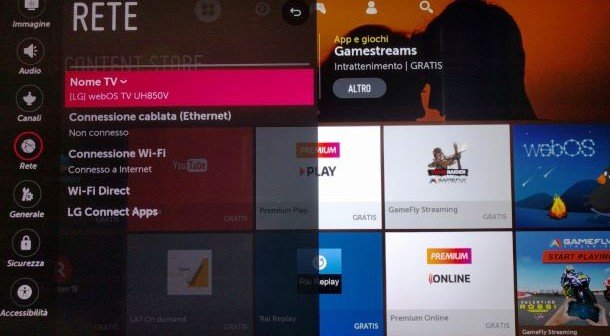
Most Smart TVs support IPTV through dedicated apps. Check if your TV’s operating system (like Android TV, Tizen, or webOS) is compatible with popular IPTV applications.

3. Step-by-Step Guide to Installing IPTV on Smart TV
3.1 Preparing Your Smart TV for IPTV Installation
-
- Connect to the Internet: Ensure your Smart TV is connected to a stable internet connection.
-
- Software Updates: Check for and install any available software updates to ensure optimal performance.
3.2 Downloading and Installing IPTV App on Your Smart TV
-
- Access the App Store: Open your Smart TV’s app store (like Google Play Store for Android TVs).
-
- Search for IPTV Apps: Popular options include:
-
- IPTV Smarters
-
- GSE Smart IPTV
-
- Perfect Player
-
- Search for IPTV Apps: Popular options include:
-
- Download and Install: Select the app you want, click “Install,” and wait for the process to complete.
For LG Smart TVs:
-
- Press the ‘Home’ button on your remote.
-
- Go to the LG Content Store.
-
- Search for an IPTV app like « Smart IPTV » or « OTTPlayer. »
-
- Download and install the app.
For Samsung Smart TVs:
-
- Press the ‘Smart Hub’ button on your remote.
-
- Navigate to the ‘Apps’ section.
-
- Search for an IPTV app like « Smart IPTV » or « Tivimate. »
-
- Download and install the app.
For Sony Bravia Smart TVs (Android TV):
-
- Access the ‘Google Play Store’ from the home screen.
-
- Search for an IPTV app like « Perfect Player » or « IPTV Smarters. »
-
- Install the chosen app.
Step 3: Configure the IPTV App
Once the app is installed, open it. You will typically need to provide your IPTV subscription details or M3U playlist URL. Follow these general steps:
-
- Launch the IPTV app.
-
- Look for the settings or configuration option within the app.
-
- Enter your IPTV subscription information, including username, password, and any necessary server details.
-
- If you’re using M3U links, input the link provided by your IPTV service.
Step 4: Enjoy IPTV on Your Smart TV
Once the app is configured, you can start enjoying IPTV content on your Smart TV. Browse channels, watch live TV, access on-demand content, and explore the vast world of entertainment at your fingertips.
Tips:
-
- Keep your IPTV app updated for optimal performance and security.
-
- Some IPTV apps may require a one-time activation fee or subscription, so be prepared for any associated costs.
-
- To enhance your viewing experience, consider using a wireless keyboard or remote with a touchpad, making it easier to navigate IPTV apps and content.
With IPTV installed on your Smart TV, you have the flexibility to enjoy a wide range of content, from live sports to international channels, all on the big screen. It’s a convenient and cost-effective way to access entertainment tailored to your preferences. So, fire up your Smart TV, follow these steps, and start exploring the world of IPTV today!
3.3 Configuring IPTV Settings on Your Smart TV
-
- Open the IPTV App: Launch the app you installed.
-
- Add Playlist: Go to settings and find the option to add a playlist or account.
-
- Enter M3U URL: Input the M3U URL provided by your IPTV service (like 4KCANAL.COM).
-
- Save and Exit: Save your settings and exit the menu.
How to install IPTV on Smart TV How to install IPTV on Smart TV How to install IPTV on Smart TV How to install IPTV on Smart TV How to install IPTV on Smart TV How to install IPTV on Smart TV
4. Exploring 4KCANAL.COM: An Overview of the Service
4KCANAL.COM offers various IPTV packages, providing access to numerous channels, including sports, movies, and international content. Their services may include:
-
- HD and 4K streaming options
-
- Multi-device support
-
- Customer support
5. How to Purchase an IPTV Account from 4KCANAL.COM
5.1 Check and Purchasing the Desired IPTV Plan
-
- Visit the Website: Go to 4KCANAL.COM
-
- Select a Plan: Choose a plan that suits your needs (monthly, yearly, etc.).
-
- Add to Cart: Click on the plan and add it to your cart.
5.2 Activating and Setting Up Your Account
-
- Proceed to Checkout: Follow the prompts to enter payment information and complete the purchase.
-
- Receive Activation Details: After purchase, check your email for your activation details, including M3U URL and login credentials.
-
- Configure the App: Use the activation details in your IPTV app on your Smart TV as described earlier.
6. Tips and Troubleshooting for a Smooth IPTV Experience
-
- Stable Internet Connection: Ensure a fast and reliable internet connection for smooth streaming.
-
- Use Ethernet: If possible, connect your Smart TV to the router via Ethernet for better stability.
-
- Restart Router/TV: If you experience buffering or disconnection, try restarting your devices.
-
- Check App Updates: Keep your IPTV app updated for the best performance.
-
- Contact Support: If issues persist, reach out to 4KCANAL.COM’s customer support for assistance.
How to install IPTV on Smart TV How to install IPTV on Smart TV How to install IPTV on Smart TV How to install IPTV on Smart TV
By following this guide, you should be able to successfully install IPTV on your Smart TV and enjoy the content offered by 4KCANAL.COM